Spreadsheets to apps
Turn your spreadsheets into apps.
Your business already runs on spreadsheets. Plantable moves them onto one database, keeps the grid and the formulas your team knows, and builds the apps that a file never could.
- Import from Excel or CSV
- The formulas you know
- Undo any edit
The usual way
The spreadsheet got the business this far. Now it holds it back.
A spreadsheet is the quickest way to start. As the business grows, the same file becomes the thing that everyone works around.
#REF!
One sort breaks a total.
Someone sorts one column, or deletes a row, and a formula reads the wrong cells. No one notices until a client does.
#NAME?
One client, three spellings.
Hotel Merrion Row, hotel merrion and Merrion Row Hotel. Each filter and each total misses some of them.
#VALUE!
Anyone can type anything.
“tbc” in the Value column, a date as text, a price with a note. A sum is only as good as what was typed.
#N/A
Who changed this?
A price changed last week. The file cannot say who changed it, or what it was before.
#SPILL!
Share it, and it all spills.
Send the file to the crew for the schedule, and they get the prices, the margins and the pay with it.
#BUSY!
Each step is typed by hand.
Requests come by phone and email, and someone types each one in. Nothing in the file happens on its own.
Most businesses then move to an off-the-shelf tool, and leave the formulas and the habits behind. Plantable keeps the spreadsheet, and fixes what is under it.
Still a spreadsheet
Your team keeps the spreadsheet. It gets a database under it.
The grid, the keys and the formulas work as in Excel and Google Sheets. Under them, each sheet is a table of a real database, and each column holds one kind of value.
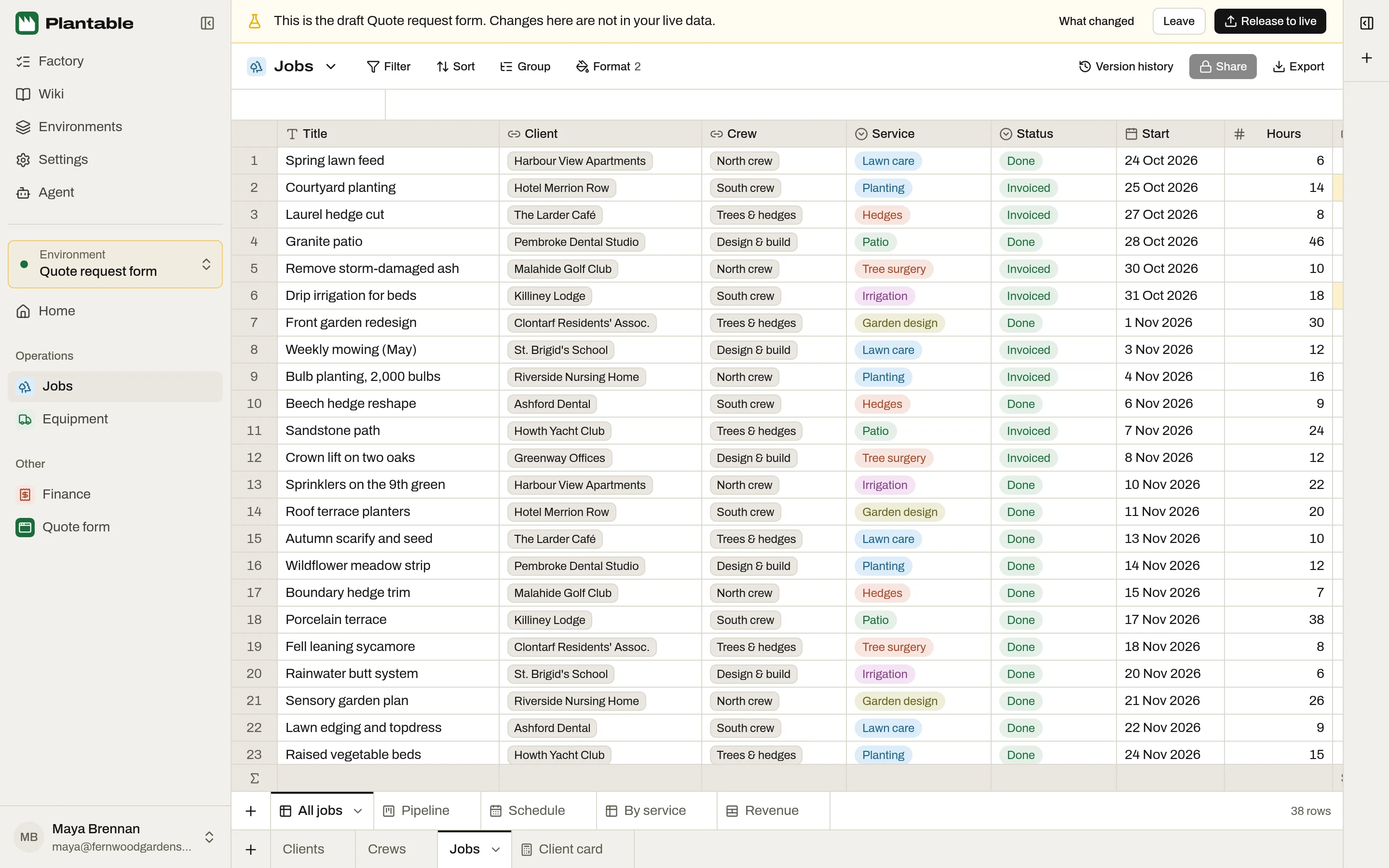
=ROUND([Value] / [Hours], 2)
- Spring lawn feed€70.00
- Courtyard planting€132.14
- Laurel hedge cut€70.00
- Granite patio€156.52
Each person sees the new column at once.
The formulas you know
SUMIFS, XLOOKUP, IF and ROUND, written as in an Excel table. A formula can read another sheet, such as the jobs of a client.
The keys you know
Move, fill, copy, paste and find with the keys of Google Sheets. Paste rows in from any spreadsheet.
Links, not retyped names
A job links to its client. Fix the name of a client once, and each job shows the new name.
One copy, for everyone
Each person sees each change as it happens. There are no copies to send round, and none to merge.
Views
One sheet. Each view your team needs.
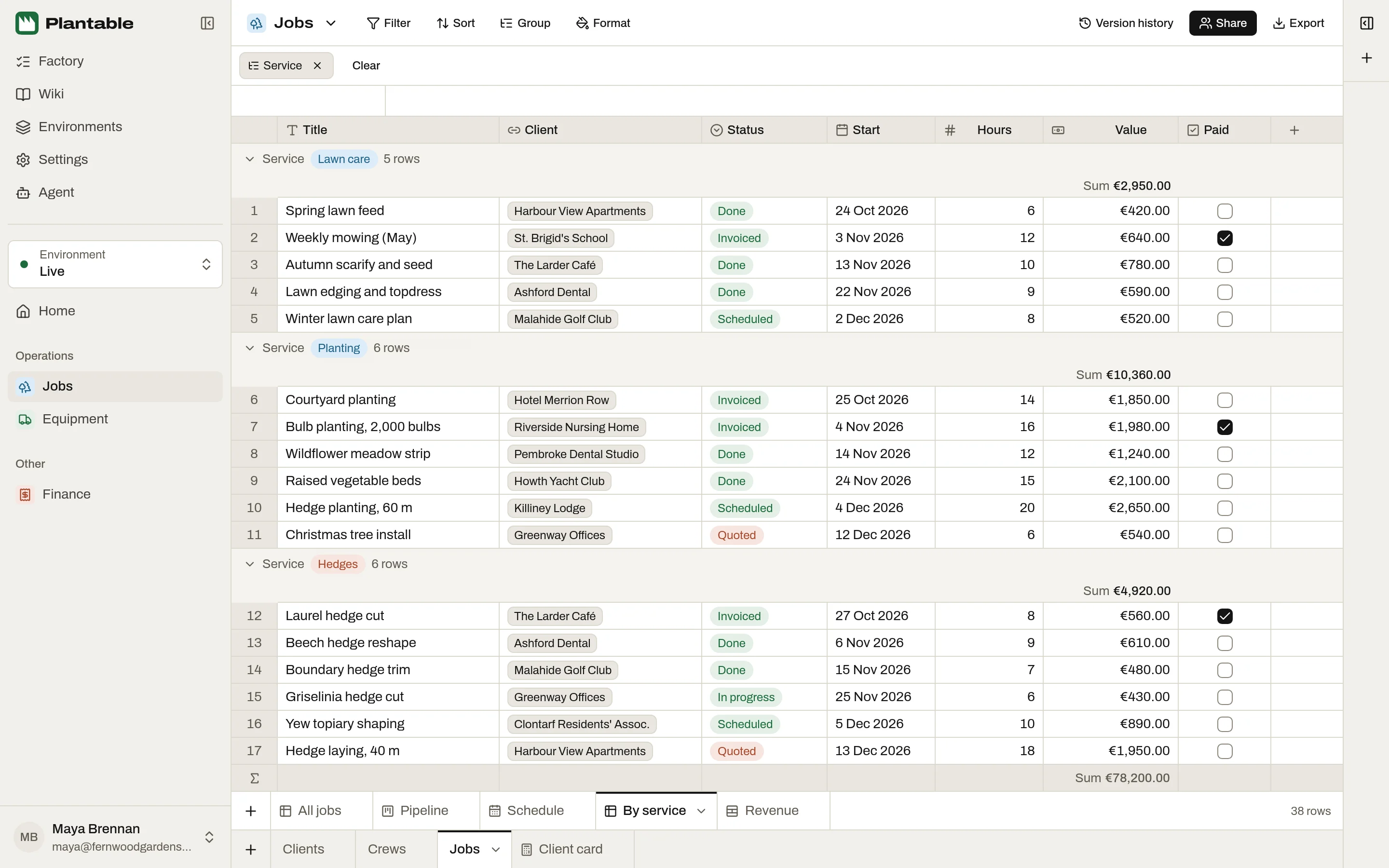
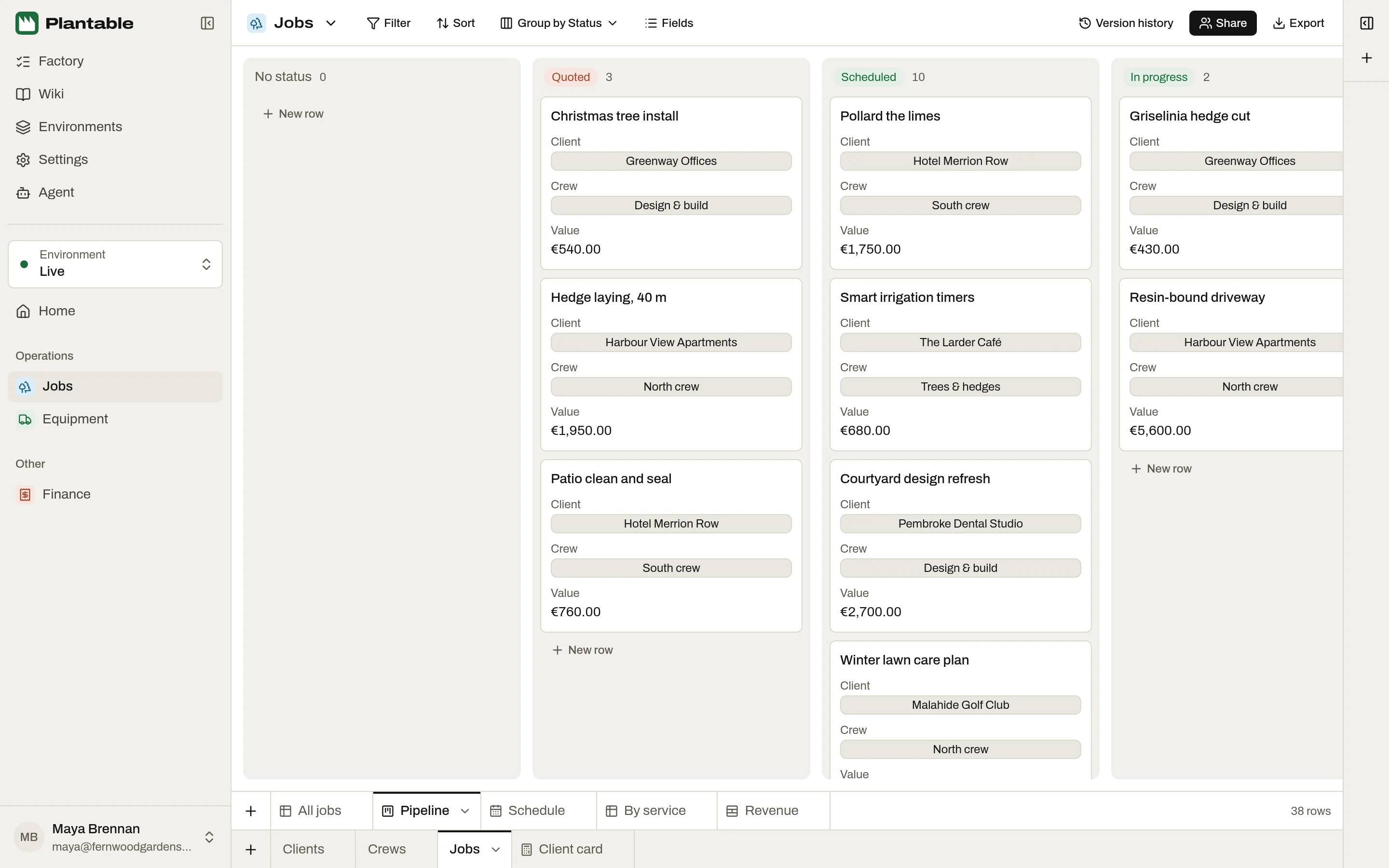
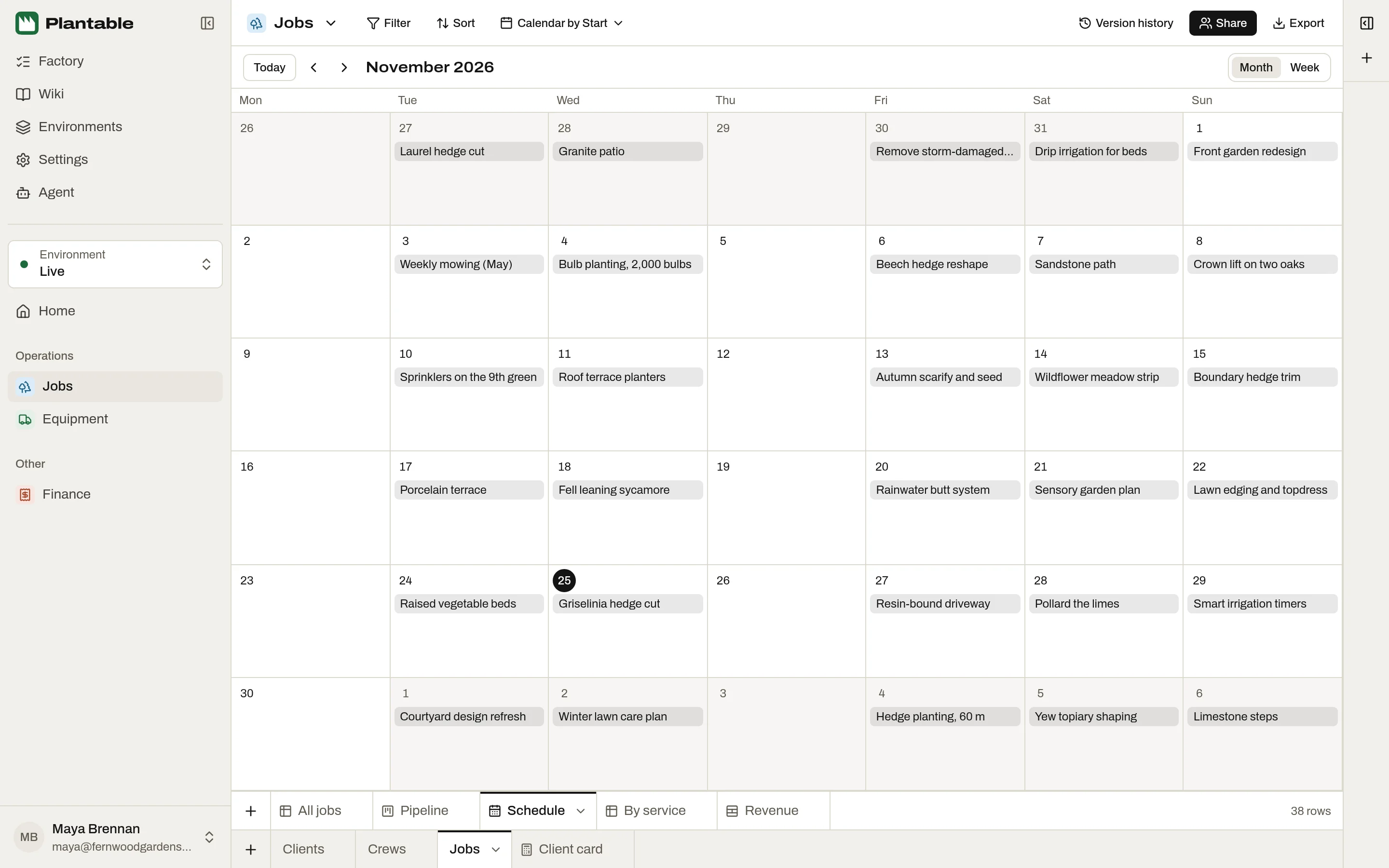
Save a view for each way of working. Each one reads the same rows, so an edit in one shows in all of them.
Groups with totals
The jobs of each service, with the sum of each group and of the sheet.
A board
A card for each job, in a column for each status, from quoted to in progress.
A calendar
Each job on the day it starts, by month or by week, for the crews.
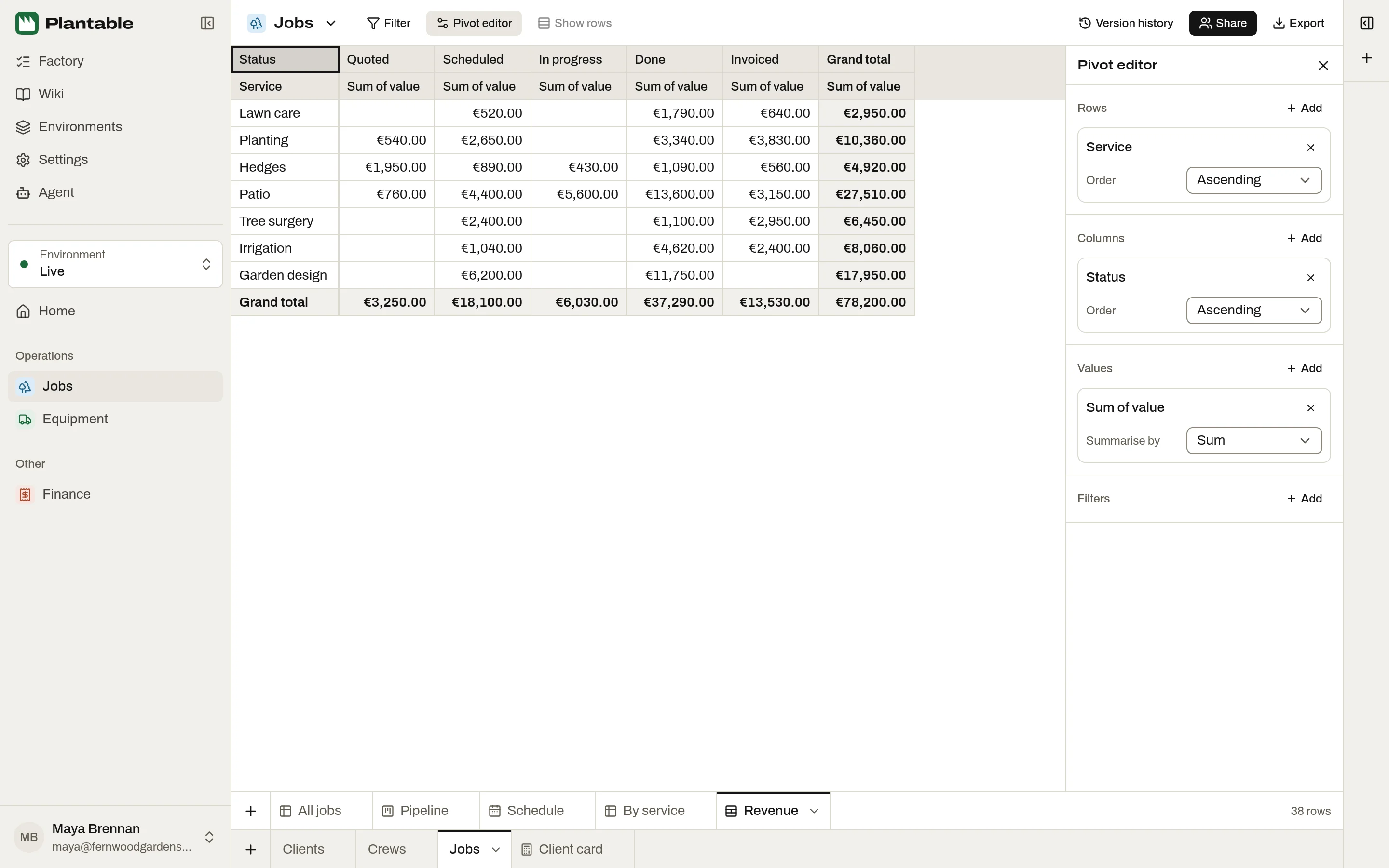
A pivot
The value of the work by service and status, with the totals, as in Excel.
Free cells, where you need them
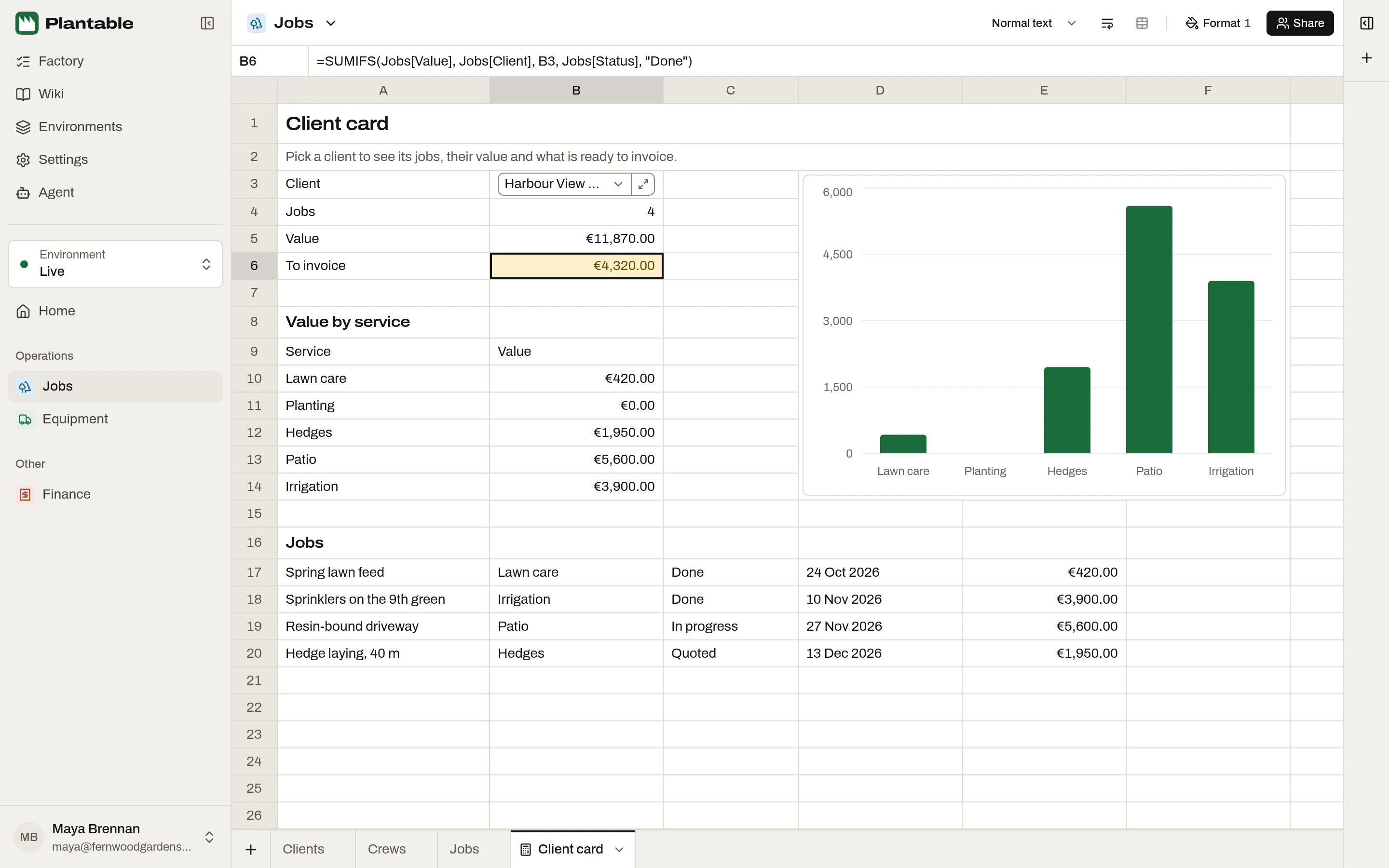
Not each sheet is a table. A calc sheet has free cells, formulas and charts, like this card that reads the Jobs sheet.
Each view keeps its own filters, sorts and colour rules, such as a value that turns amber when a job is invoiced and not paid.
From sheet to app
Then ask for what a spreadsheet could never do.
A file cannot take a request from your website, or do the next step when you press a button. Ask the agent in plain words, and it builds the app in real code, on the same rows.
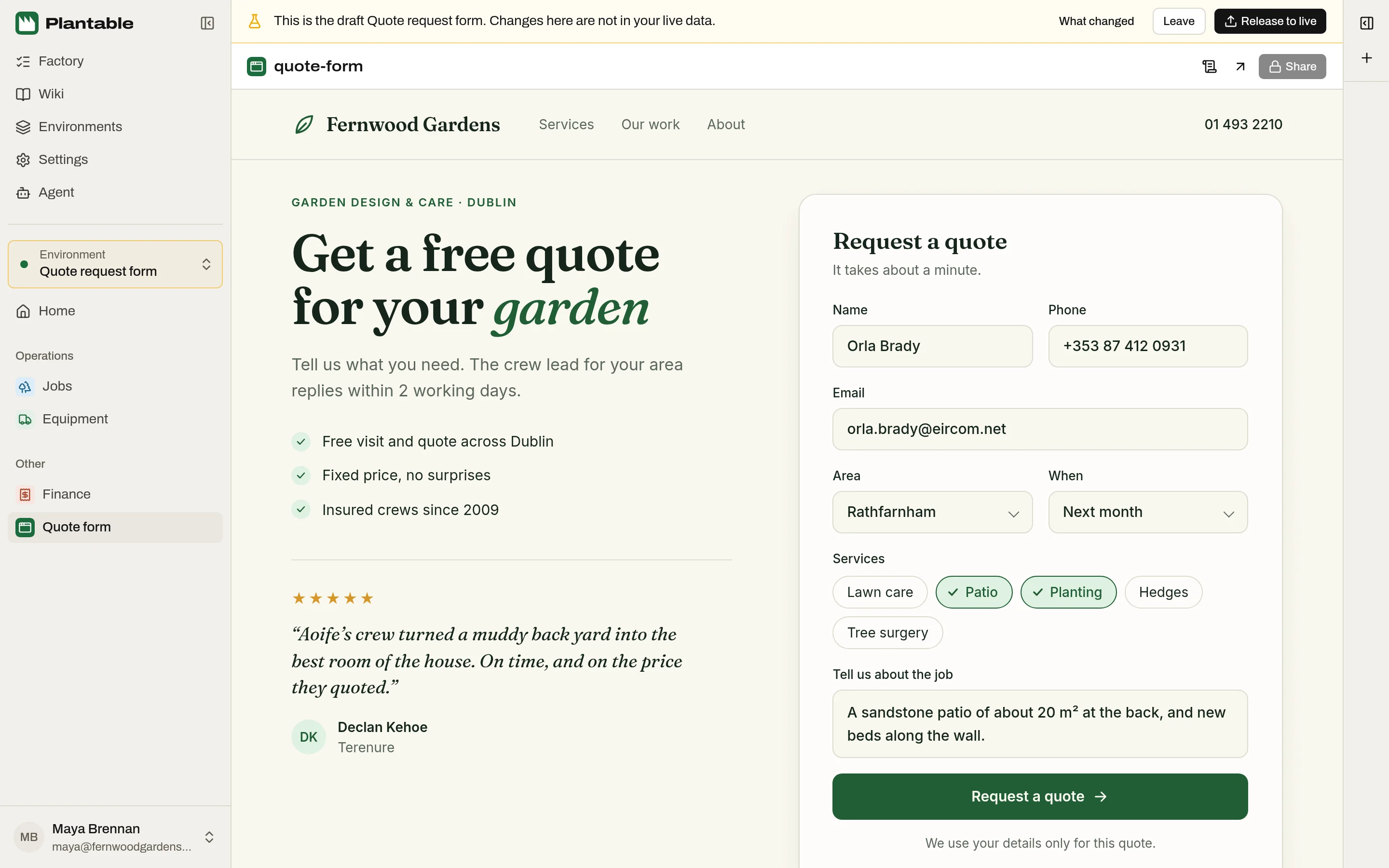
A form on your website
Requests land in a sheet as rows, so no one types them in again.
A card for each client
Pick a client, and see its jobs, their value and what is ready to invoice.
A button that does the next step
A button in a sheet runs one step of the work, the same way each time.
Work on a schedule
Each Monday, the overdue invoices land in one list for the office.
Screens for each role
An app for the crew, with only the jobs and the fields that they need.
You try each app on a copy of your data, then release it to the team.
The move
Move one spreadsheet at a time.
No big switch, and no day when work stops. Start with the file that causes the most trouble. The rest can wait.
- Step 1
Drop in the file
Drop an Excel or CSV file on a sheet, or send it to the agent. From Google Sheets, download it as an Excel file first.
- Step 2
Say yes to the plan
The agent plans the sheets, their columns and the links between them, and asks about the business before it writes a row.
- Step 3
Check what came in
The rows come in together, in one step. A row that does not fit goes to a file of its own, so nothing goes missing.
- Step 4
Keep working
The team works in the new sheets from the start. Ask for the first app when you are ready.
Here are our jobs. The clients are in the second tab.
I read 2 tabs: 38 jobs and 14 clients. My plan:
- A Clients sheet, with 14 rows
- A Jobs sheet, with 38 rows, each linked to its client
- Service and Status as lists, so each value is spelt one way
3 jobs name the client “Merrion Row”. Is that Hotel Merrion Row?
Safer than a shared file
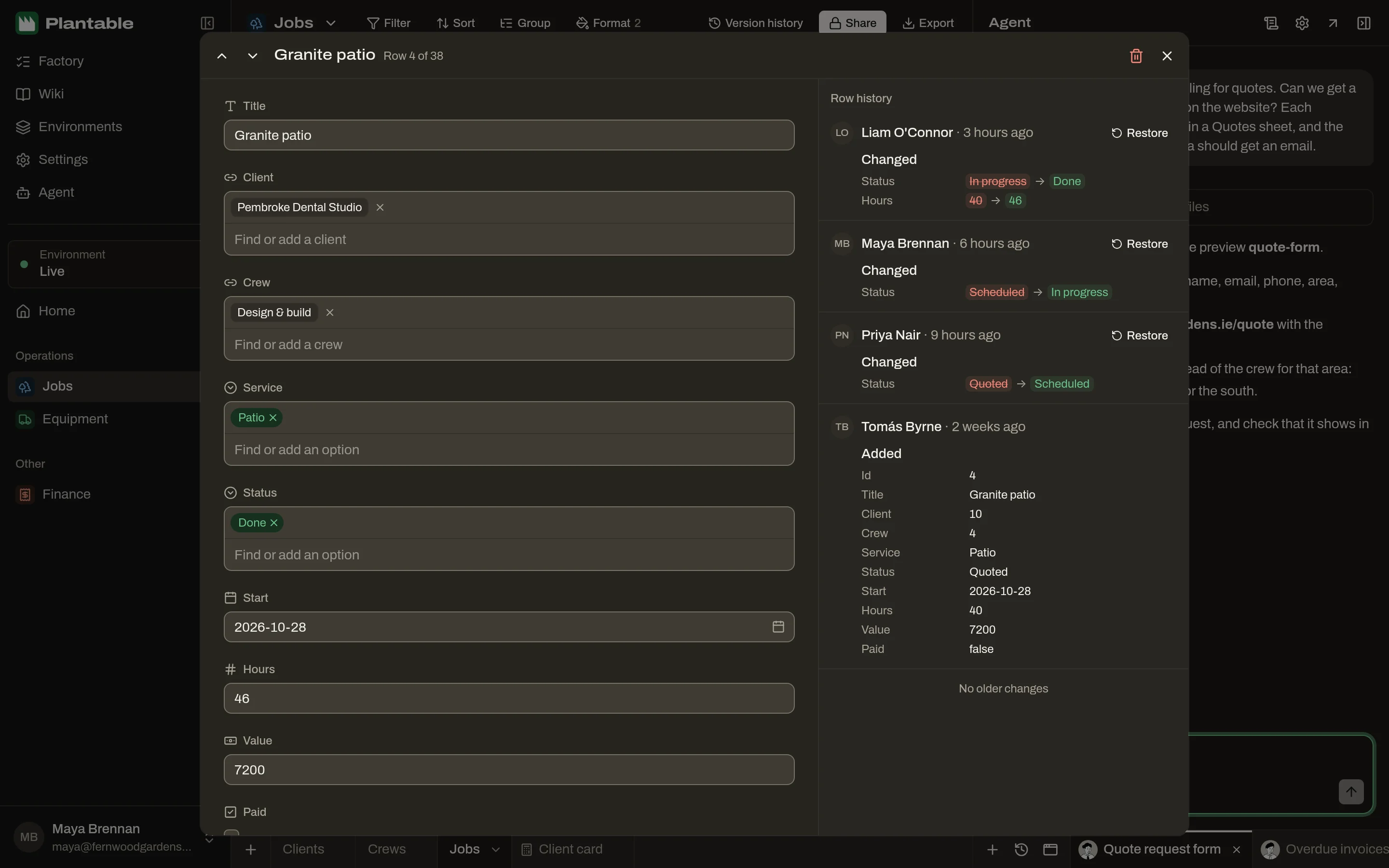
Each edit is kept. Each person sees their part.
A shared file trusts everyone with everything, and forgets what changed. Plantable keeps each change, and lets you choose who sees each sheet.
Row history of Granite patio
- Who changed what
- Not kept.Each change of each row, by whom and when.
- A mistake
- Look for an old copy, if there is one.Restore a row, or undo a change to the whole sheet.
- Who sees what
- Each person with the file sees all of it.Choose who can view or edit each sheet.
- A change to an app
- Made in the file that everyone uses.Tried on a copy of your data, then released by a person.
The demo
Bring the spreadsheet your business runs on.
Or a copy with the private columns taken out. We go through it with you, and show it as sheets, as the views your team would use, and as the first app it could become.
If a spreadsheet is still the right tool for you, we say so.
Book a demoDrop your spreadsheet here
XLSX or CSV
- Sheets
- Views
- A first app
Questions
Before you move a spreadsheet.
What owners ask us before they move off Excel and Google Sheets.
Can I bring my Excel files?
Yes. Drop an Excel or CSV file on a sheet, or send it to the agent. The agent plans the sheets and their columns, asks before it writes, then imports the rows. A row that does not fit goes to a file for you to check.
Does it sync with Google Sheets?
No. Download each sheet from Google Sheets as an Excel file, and import it once. After the move, your team works in the sheets in Plantable.
Do my formulas come with the file?
The import brings the values. The formulas are written again in Plantable, with the functions of Excel, such as SUMIFS, XLOOKUP and IF. Tell the agent what a column works out, and it writes the formula.
Will my team have to learn a new tool?
Not much. The grid takes the keys of Google Sheets, and the formulas read as in Excel. Boards, calendars and apps come on top, when you want them.
How is this different from Airtable?
Both put a spreadsheet on a database. In Plantable, agents also build the apps around it in real code, the data is in your own Postgres database, and a calc sheet keeps the work that is not a table.
Can I get my data back out as a spreadsheet?
Yes. Export any view to Excel or CSV at any time. The data is in a Postgres database, which any developer or tool can read.
How much does it cost?
It depends on the sheets and the apps you ask for. In the demo, we go through your spreadsheet with you and show what you would pay.
Book a demo
Which spreadsheet runs your business?
Book a demo, and bring it. We show you its rows as sheets, the views your team would use, and the first app it could become.